Stage
Keep the people you want to see in view.
In an online meeting, someone is speaking, and there are others you may want to pay closer attention to.
In a meeting this big, do your eyes have to keep following the speaker?
 Austen Jones









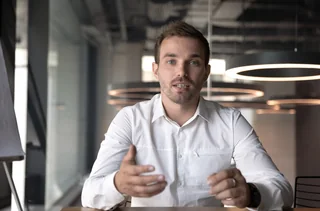






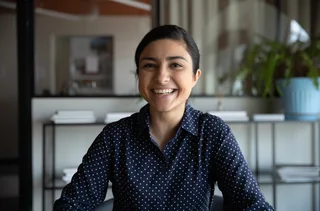


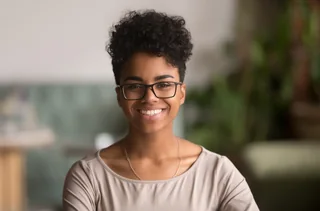



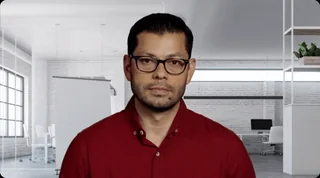
A fixed area for the current speaker makes the conversation easier to follow.
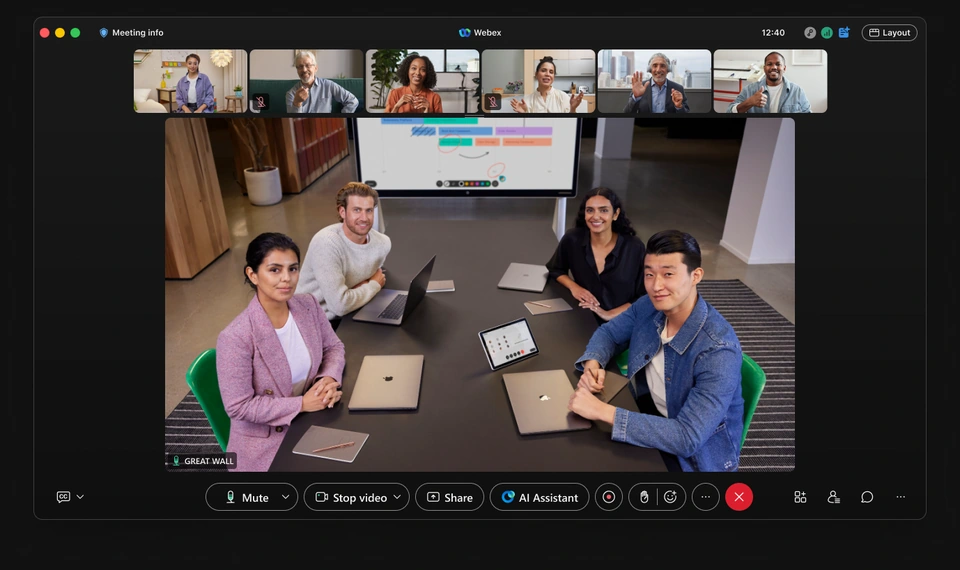
What if you want to focus on someone who isn’t speaking?
In a meeting, you might want to see your manager’s reaction while listening to a presentation. If your manager isn’t speaking, their video stays out of the main view.
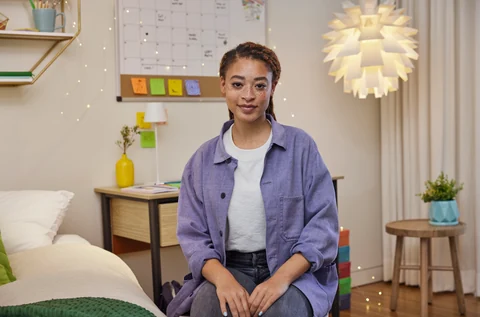
Then let’s bring that video into the fixed area, too.
This lets you see the current speaker clearly while keeping the person you want to focus on in view.
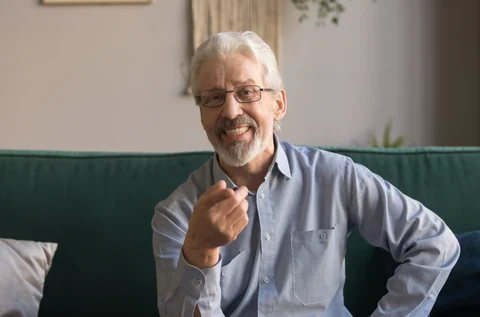

This large area is your Stage.
Think of Stage as a large canvas. It keeps the people and content you want to focus on at the center of your meeting view.
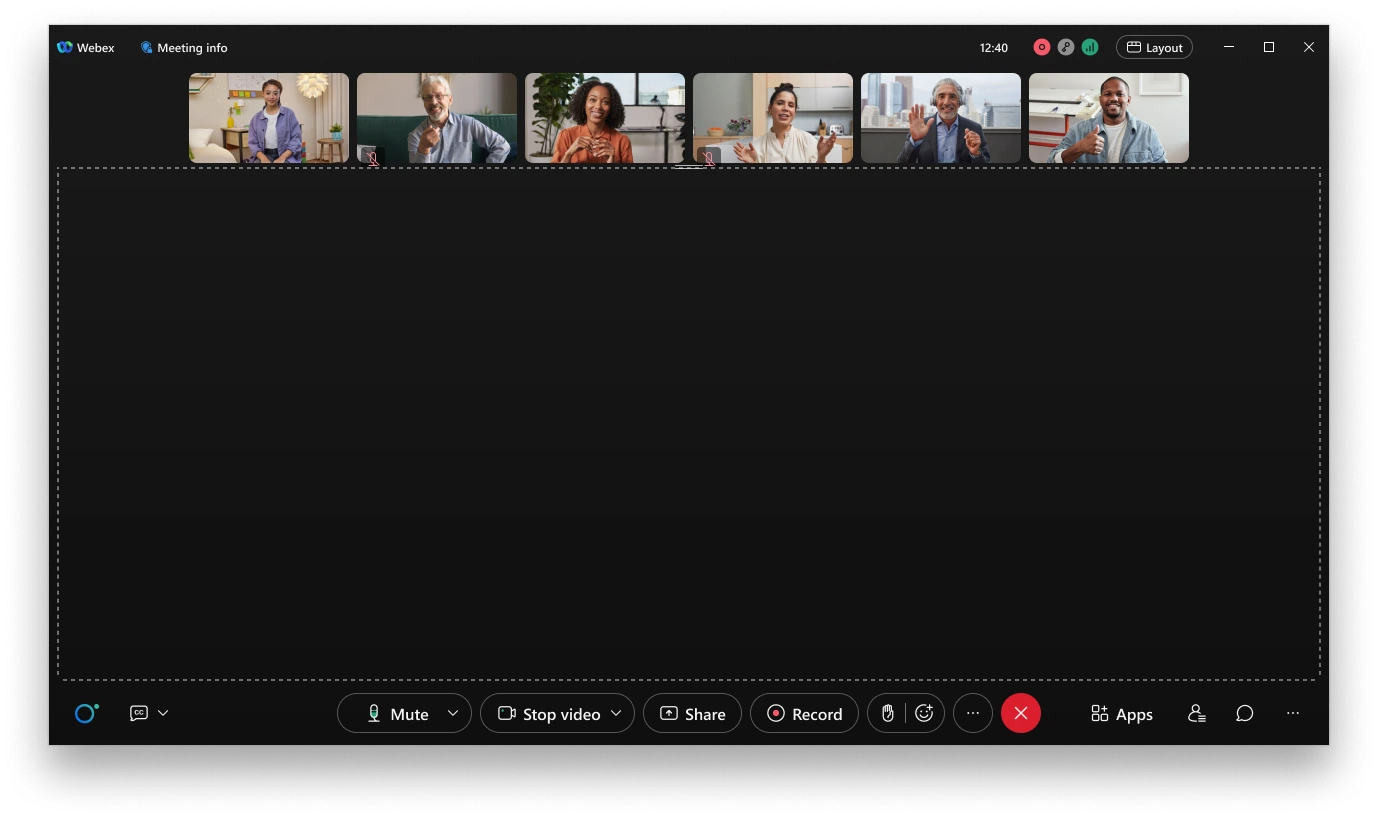
What can you do on Stage?
Customize Stage by choosing which videos and shared content appear in the main area.
-
Put what you want to see on Stage
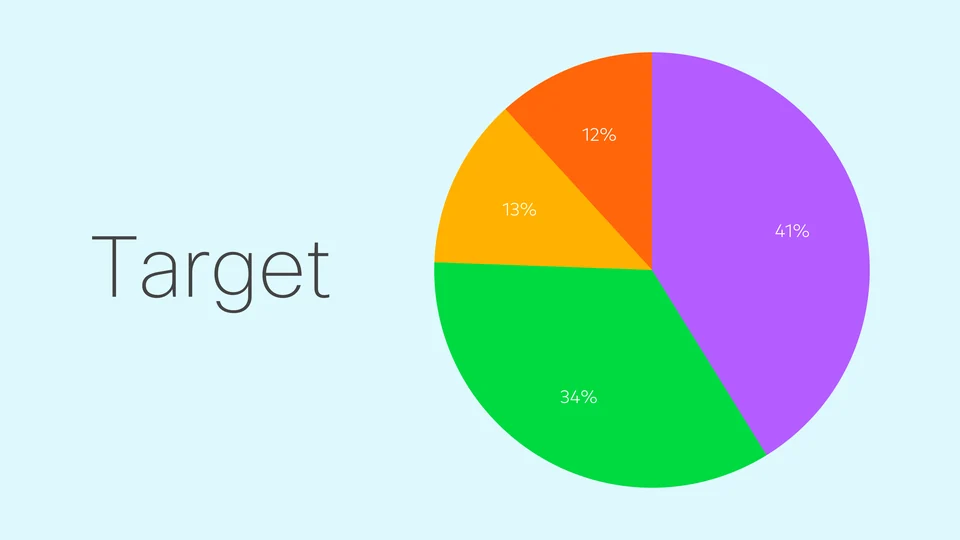
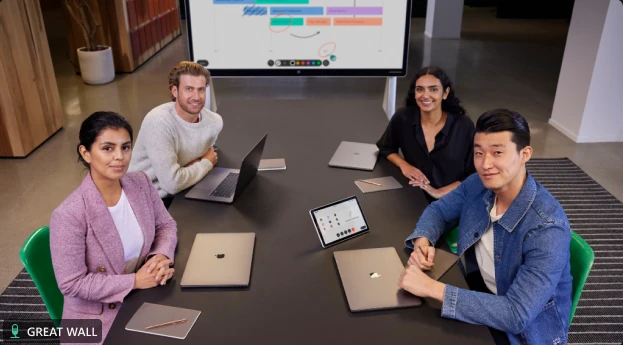
Drag video or content onto Stage to view either alone or both side by side.



-
Adjust the width of each side
When both sides have content, drag the divider to give one side more room.

-
Change the background and logo
Choose a color or pattern for the Stage background and add your team’s logo in the upper-right corner.
 Miro
 Dropbox
 Figma
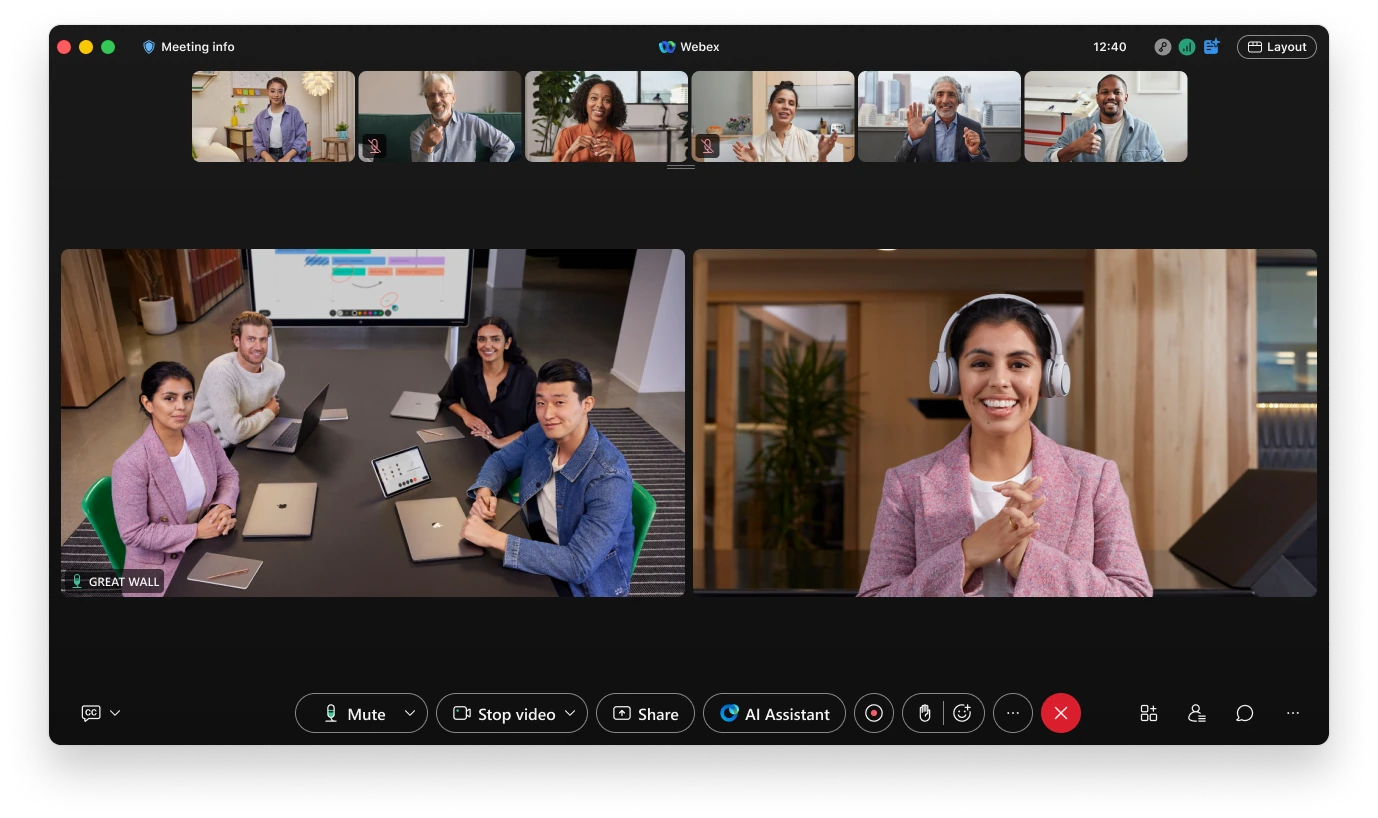

 You’re syncing your Stage for everyone
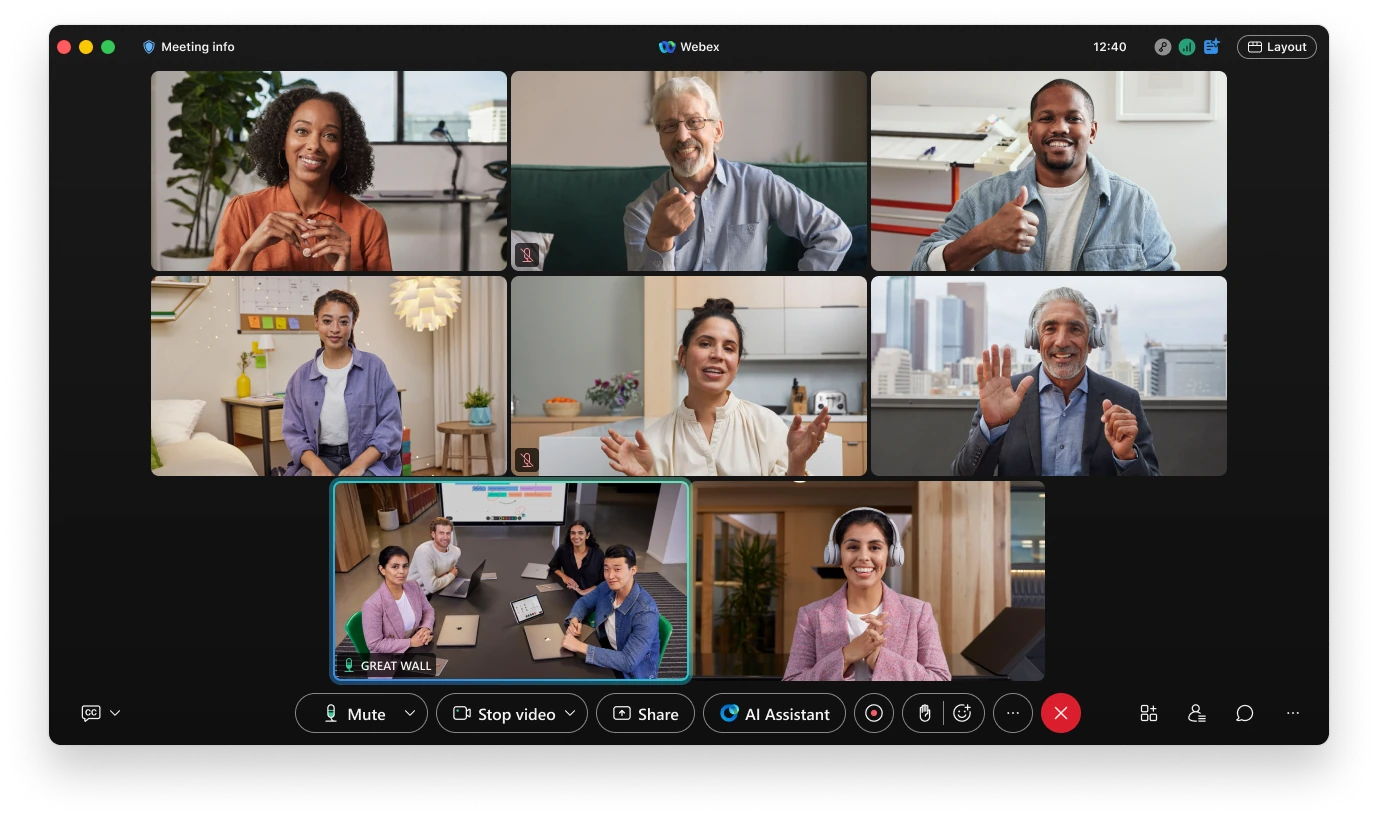
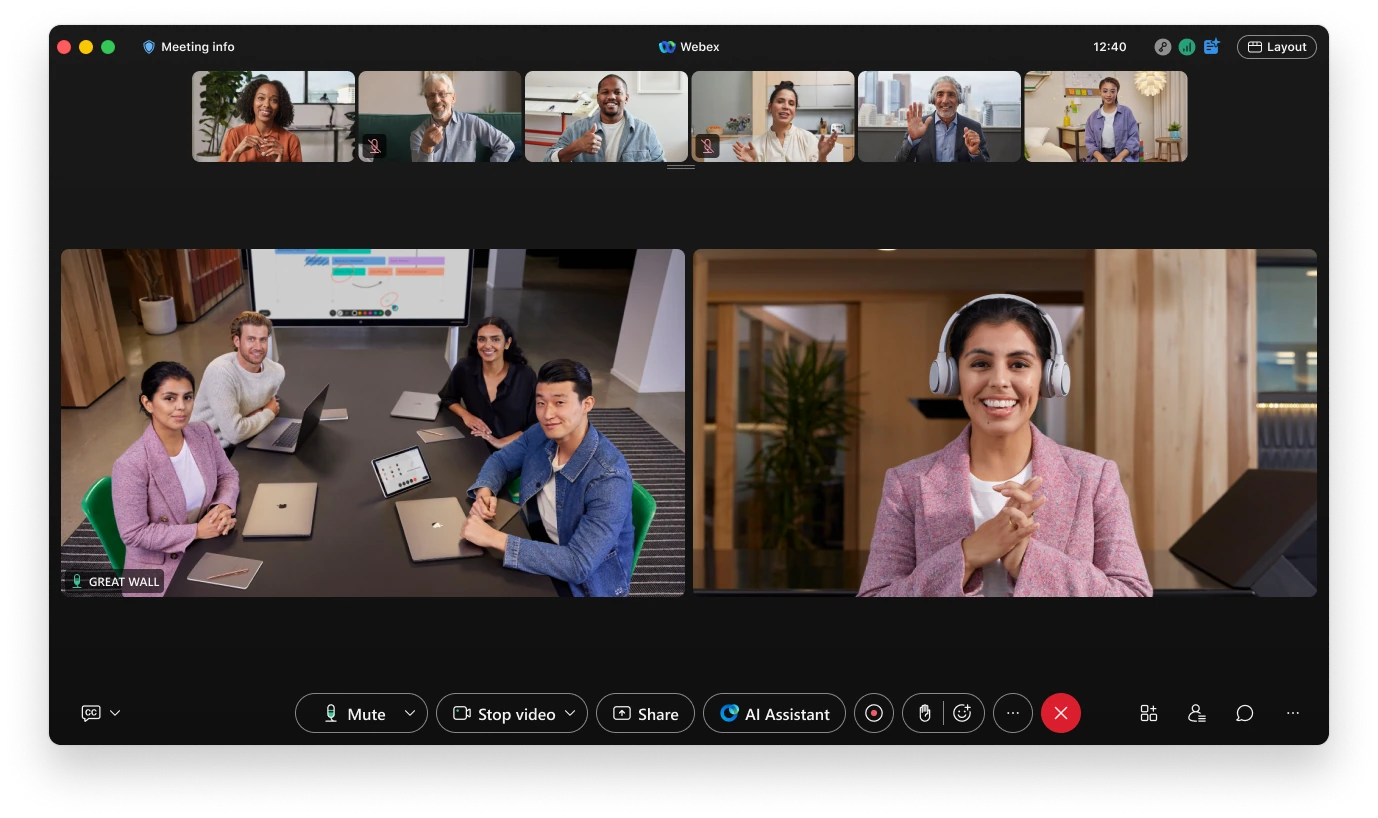

The host has set the stage view for everyone.
User A sees the current speaker on Stage. User B is in Grid view.
Need to change who’s on Stage after syncing?
The host can add or remove people while attendees keep seeing the last synced Stage. Everyone sees the new layout once the host selects Update.

 You’re syncing your Stage for everyone
You customized the stage.
Update
Discard changes
What if you want to focus on someone else after the host syncs Stage?
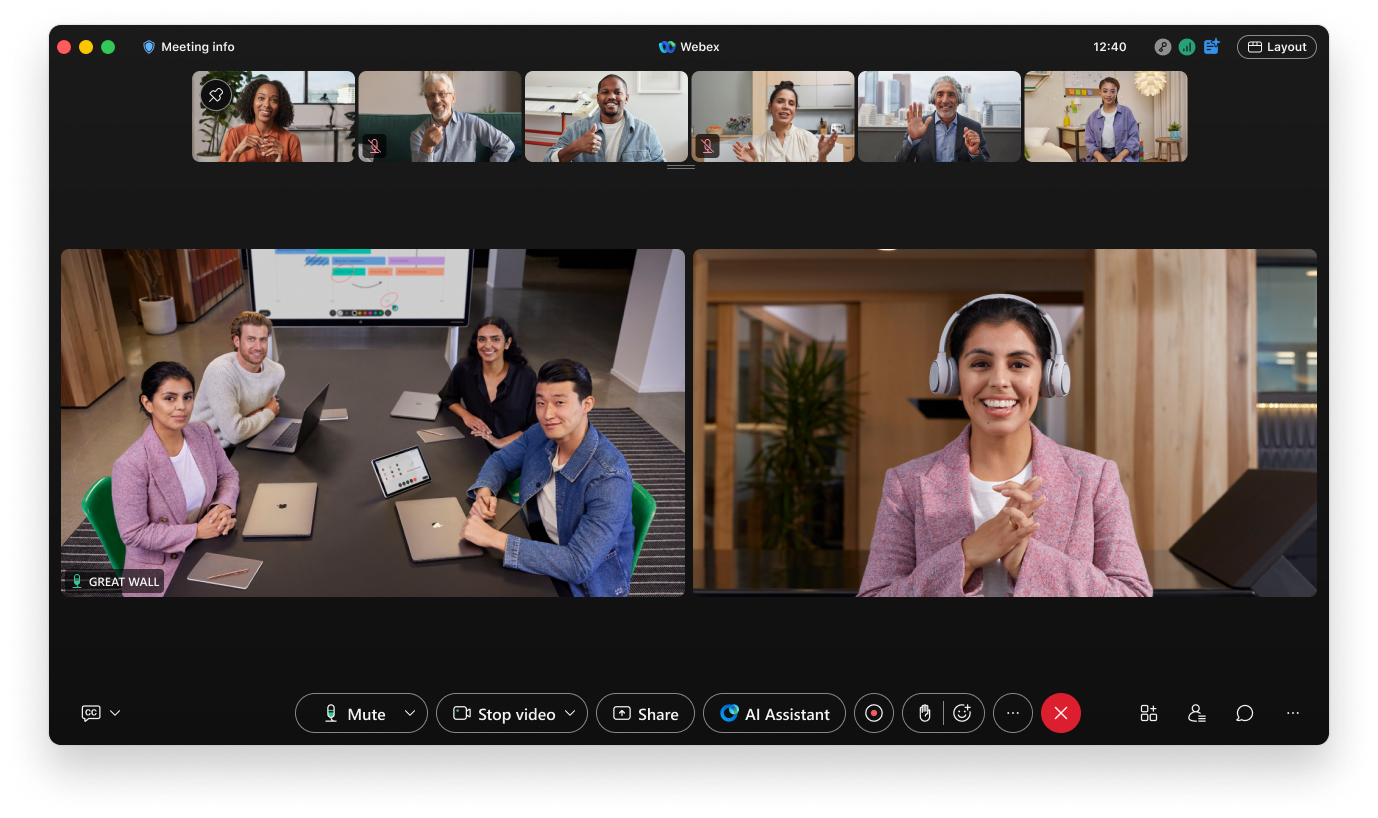
When the host syncs Stage and leaves the attendee view unlocked, you can pin someone from your own filmstrip while keeping the host’s synced Stage in view.
How do other meeting apps use “Pin” and “Spotlight”?
Drawbacks
- Pinning or spotlighting multiple participants takes repeated clicks in each video’s menu, with no drag-and-drop shortcut.
- Once the host starts spotlighting, attendees can still see the video thumbnails but can’t pin anyone else from them.
Drawbacks
- Pinning multiple tiles for everyone requires selecting “For everyone” on each tile, with no drag-and-drop shortcut.
- Videos pinned via “For myself only” and “For everyone” share the main view. Even with small indicators, it can be hard to tell who pinned what.
- The host’s pin is applied once. Attendees can remove it from their own view, so the host can’t use pinning to lock what they see.
Drawbacks
- Spotlighting multiple participants requires a separate menu action for each person, with no drag-and-drop shortcut.
- Spotlighted videos and personal pins appear together in the main view. Spotlight doesn’t let the host lock the attendee’s layout.
Why did I take a different approach?
Limitations of other platforms
- In Google Meet and Microsoft Teams, personal pins and host selections share the main view, making it easy to lose track of who chose each video.
- Zoom Spotlight blocks attendee pins.
- Select each video. Confirm if prompted.
- Pin and Spotlight offer no settings for the background or logo of the shared layout.
- Changing who’s spotlighted or pinned for everyone takes multiple steps, and attendees see each change as it happens.
Advantages of Webex Stage
- The host can keep the filmstrip visible after syncing, so attendees can still pin people there for themselves.
- The host can show only the synced Stage, so everyone focuses on the same view.
- The host can arrange videos and shared content, then sync the whole Stage at once. Attendees see the same arrangement and proportions.
- Customize the Stage background and logo for the meeting.
Stage adapts to more meeting scenarios
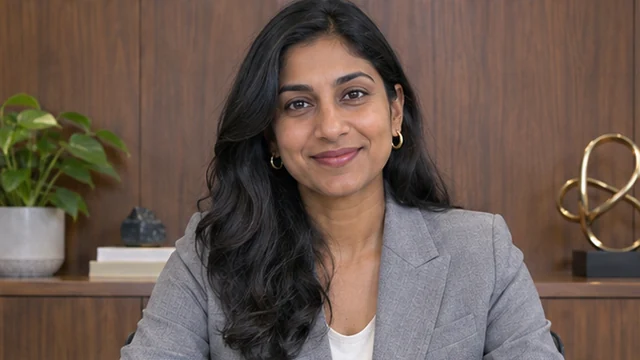
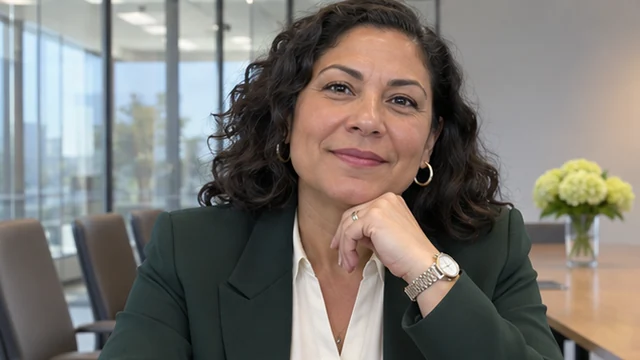
A pairs slides and a colleague’s video, while B keeps just the slides on Stage.
Participant A
Participant B
The teacher controls the view, showing only the teacher and slides so students can focus.
 Teacher




 You’re syncing your Stage for everyone
Student
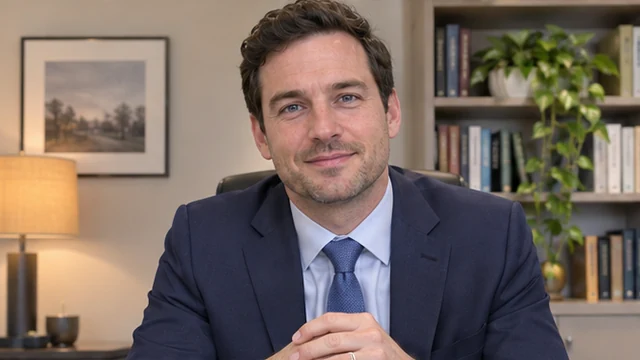
The assistant can set up Stage early, then sync it at the right time.
 Assistant
 You’re syncing your Stage for everyone
You customized the stage.
Update
 Attendee
Stage usage in Meetings and Webinars
The share of sessions in each format where someone customized or synced Stage. When webinar hosts need everyone to see the same content, they can lock the attendee view to the synced Stage. This may help explain the higher usage.
-
Meeting5.35%
-
Webinar19.9%
| Meeting | Webinar | |
|---|---|---|
| Sessions using Stage | 867K | 12.0K |
| Active Stage users | 917K | 44.1K |
Webex ROMA · UCF Feature Usage · Oct 26–Nov 24, 2026 (UTC+8). Counts are rounded.
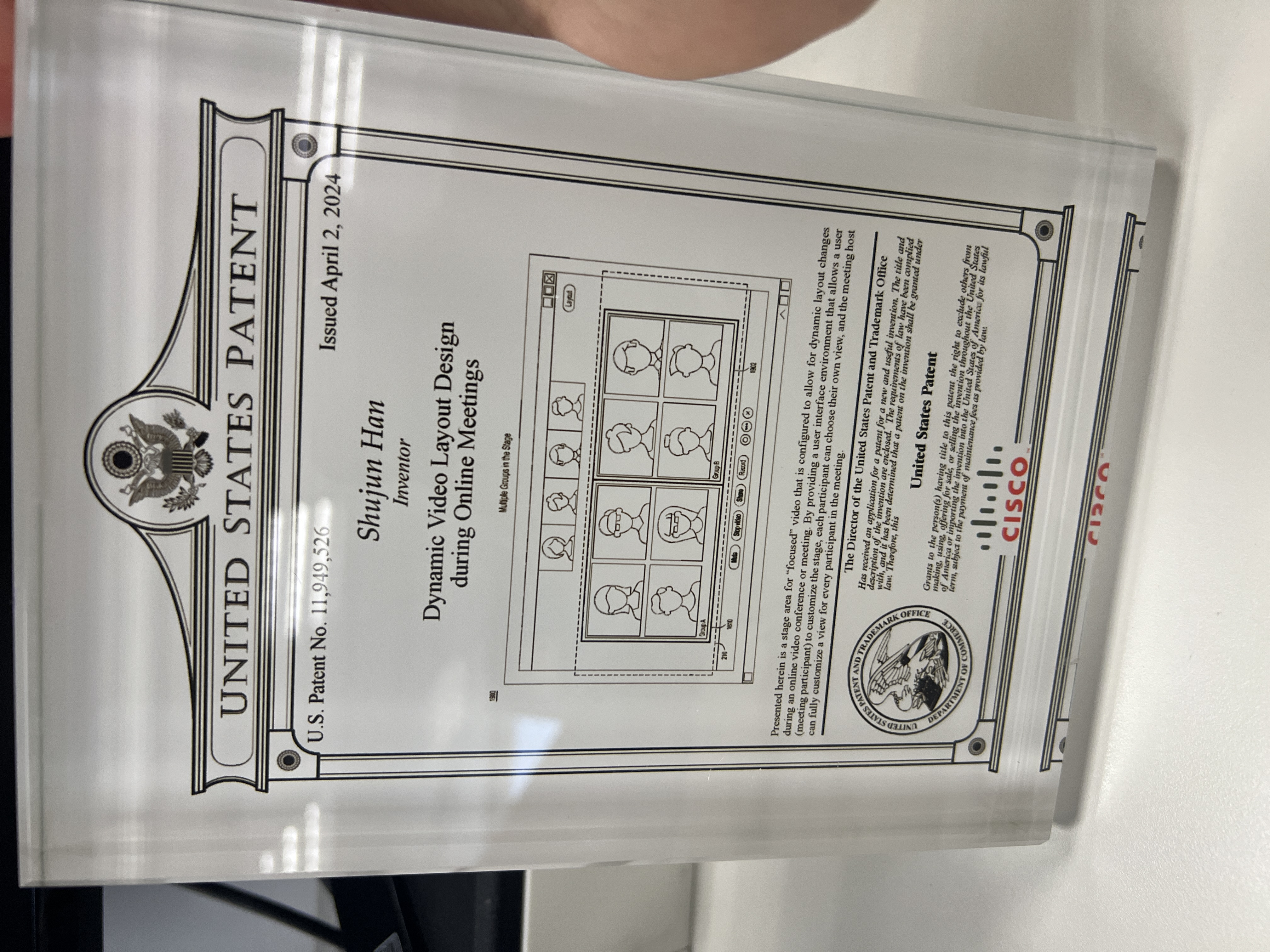
The patent behind Stage
Dynamic Video Layout Design during Online Meetings describes a dedicated area for focused content. Participants can arrange it for themselves, and hosts can sync their view to everyone.
Co-inventor · US patent 11,949,526 · Granted Apr 2, 2024